


How to Generate Your First Report in MarketTrack
Step 1: Access the Report Generation Feature 0:00
From the dashboard, click on Generate Report.
Step 2: Enter Your Location 0:13
Input your location using a postcode for accurate data.
Example: For Sawbridgeworth, type in CM21.
Note: Using a town name captures a less accurate snapshot.
Step 3: Select Sector (Optional) 0:41
You can narrow down to specific sectors (0, 1, 2, 3).
To select the whole sector, choose the top option and click on it.
Step 4: Enter Valuation Booking URL 0:51
Input your valuation booking URL (e.g., yourvallink.com).
Step 5: Choose Report Type 1:06
Select the type of report you want:
Seller's Guide: Best for generating leads from ads.
Data Reference Sheet: Good for pre-vows and evaluations.
Premium Article Report: Great for social media sharing and newsletters.
Step 6: Generate the Report 1:36
Click on Generate Report.
Wait approximately 30 seconds for the report to generate.
Step 7: Preview the Report 1:58
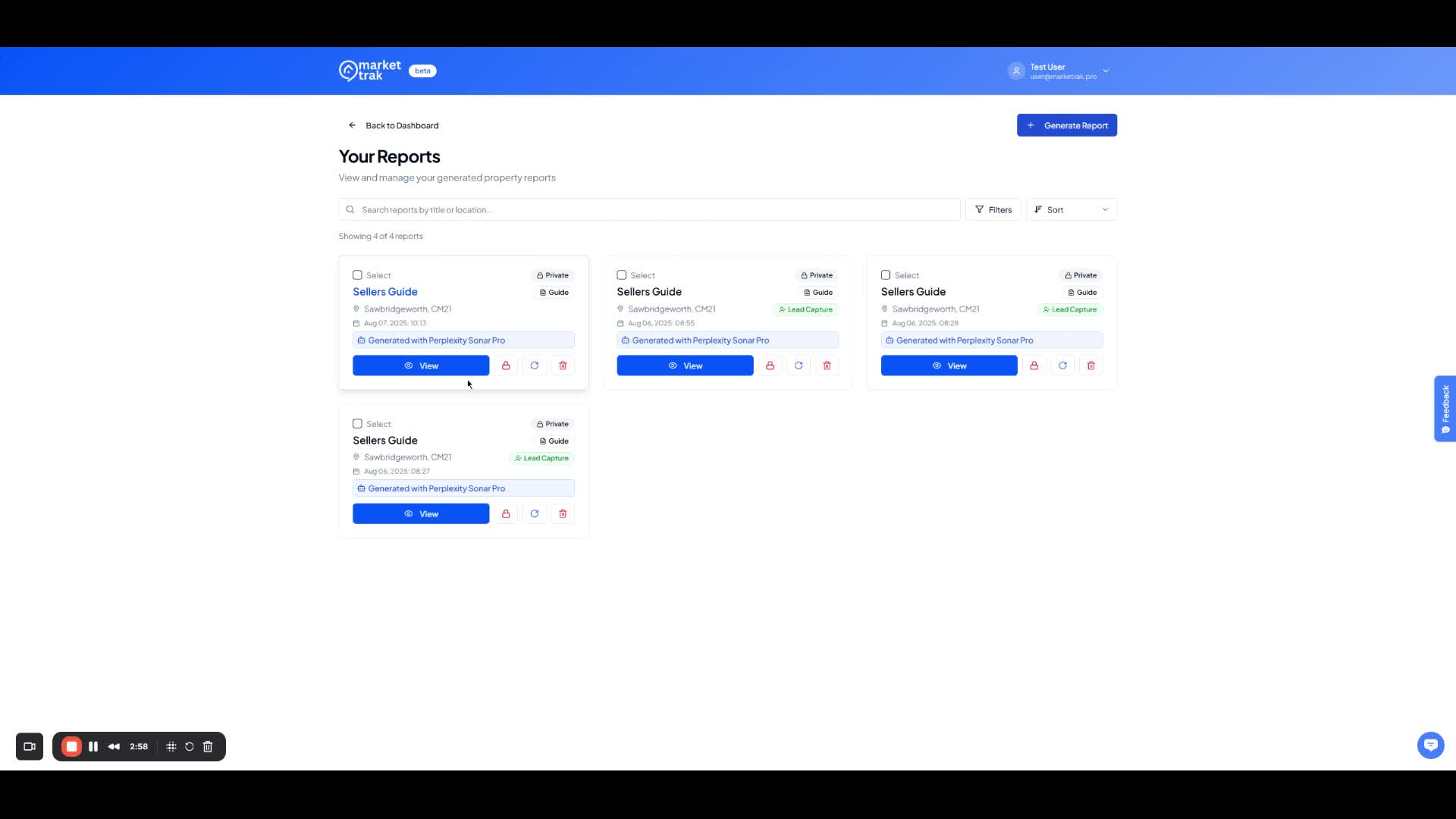
Once generated, you can preview the report.
Step 8: Unlock the Report for Public Use 2:58
Click the back button to see options for the report.
To unlock it, click the unlock button.
Step 9: Share the Report 3:09
Choose from the following options:
Copy Public URL: Share the link in posts.
Embed Report: Integrate it into blogs or websites.
Activate Lead Capture: Requires email for unlocking (available on ultra plan).
Step 10: Access Support if Needed 3:49
If you have questions, use the chat widget to access support.